Features
Everything in Fundur, today.
This page lists what you can use right now. Anything still being built is under "Coming next" at the bottom, so you always know which is which.
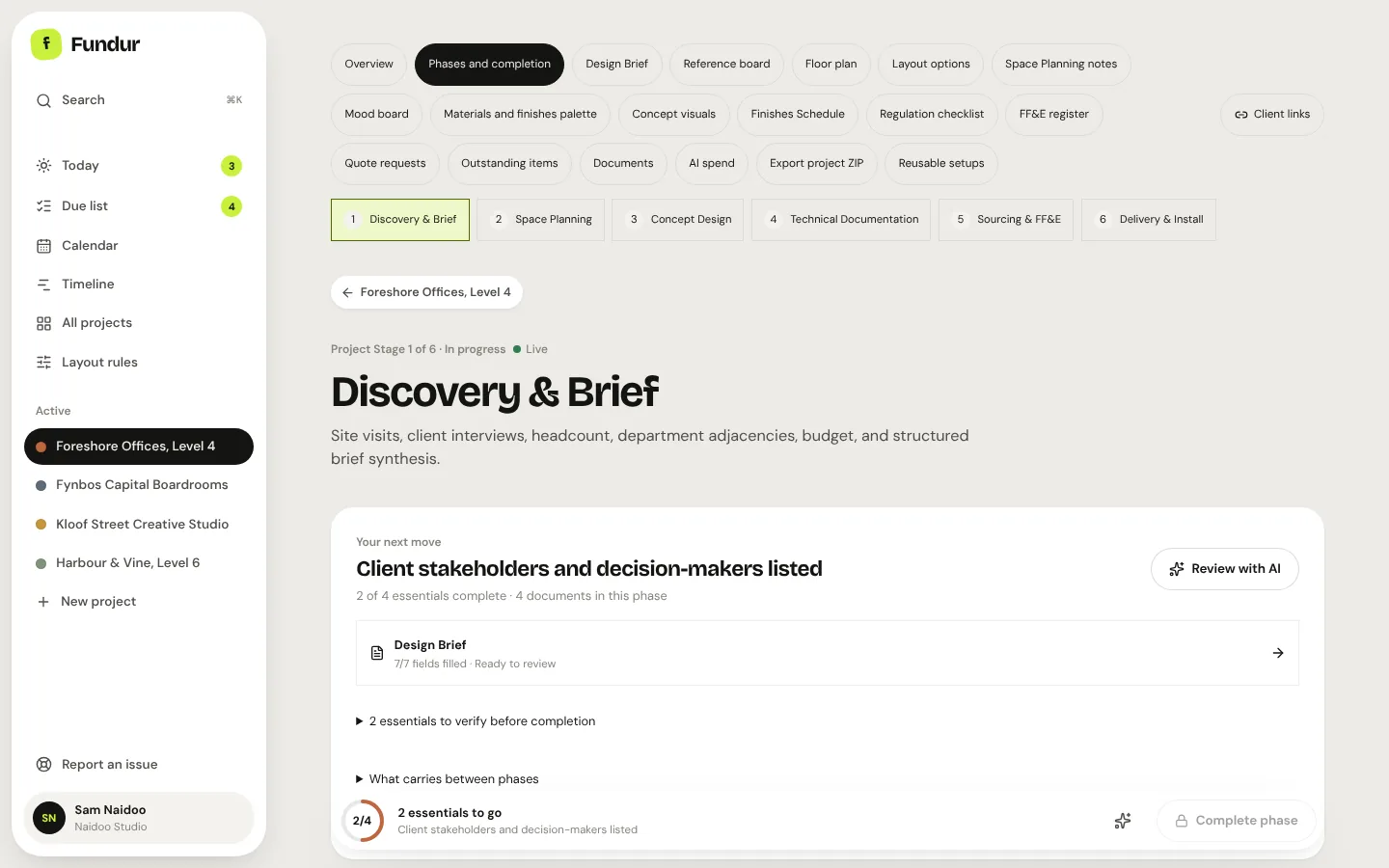
Run projects through a workflow
- Two ready workflows. Interior design and UX & product design, each in six phases.
- Phases, steps and gates. Each phase has its steps; essential ones must be done before the phase completes.
- Handoffs. What one phase decides is passed on to the next as context.
- Your own workflows. Edit phases, steps, forms and handoffs in the workflow editor, preview them and publish a version.
- AI workflow builder. Describe how you work in a short interview and review the draft workflow it builds.
- Reusable project setups. Save schedules and checklists from one project and start the next with them.
Know what needs you
- Today. The single most urgent step across all projects, then everything else waiting on you.
- Waiting on. Mark a project as waiting on you or on the client in one tap.
- Dated tasks. Steps become dated tasks with outputs, and you can add your own tasks.
- Calendar and timeline. Day, week and month views, and a timeline where dragging a phase moves its steps.
- Search everything. Find projects, clients, documents, briefs, forms, notes and tasks from one box (⌘K).
- Remembered views. Filters, tabs and views you choose are kept for next time.
Plan the space
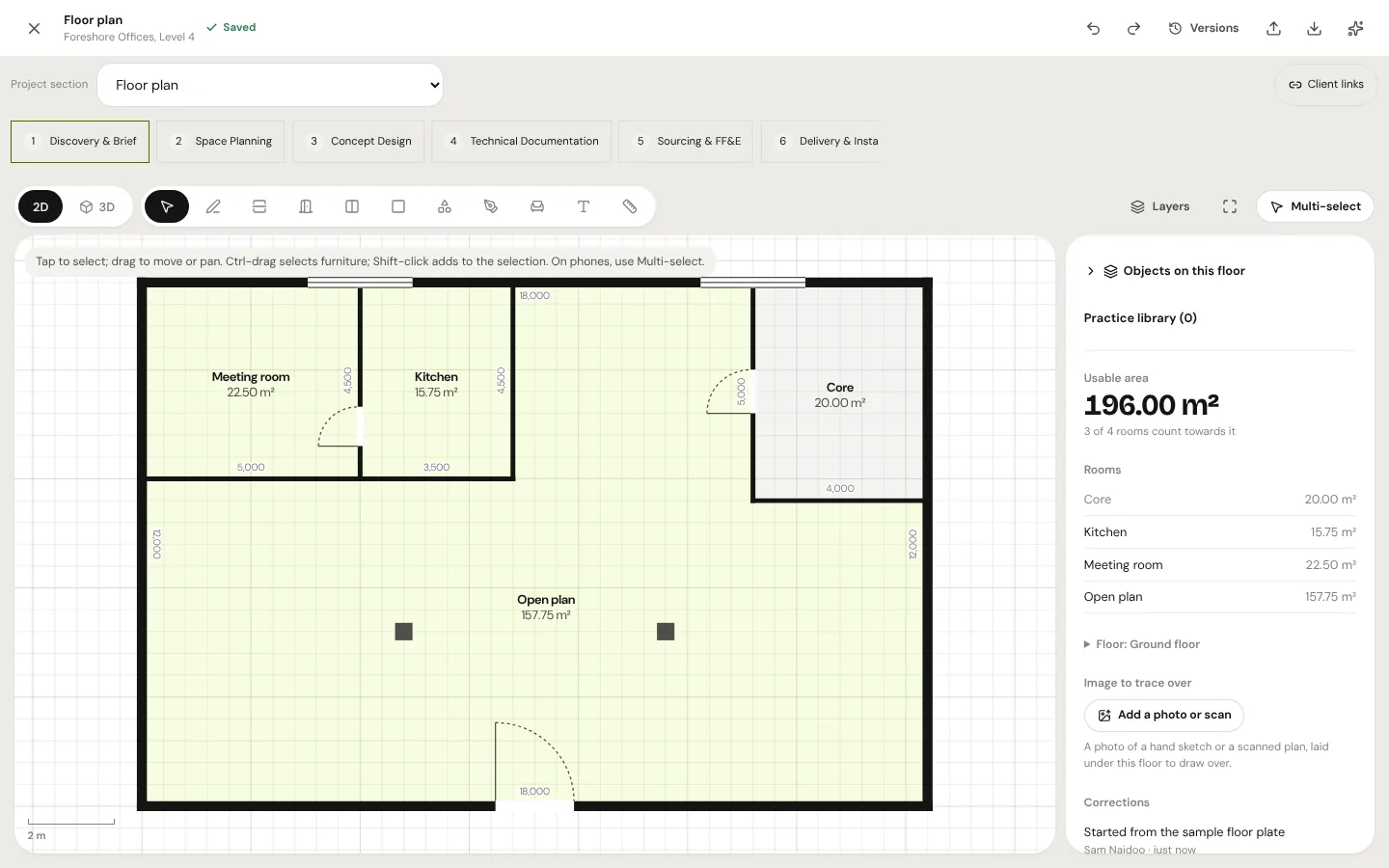
- Floor plan editor. Walls, partitions, door types, windows, columns, rooms with live areas, notes and dimensions.
- Precise drawing. Typed lengths, smart snaps to walls and openings, and editable distance guides.
- Furniture and library. Place, group and replace furniture, browse an object tree and keep a practice library.
- 3D view. A linked 3D view of the building alongside the plan.
- Open formats. Import DXF; export every saved version as DXF and IFC4. Trace over a photo or scan.
- Layout options. Set your desk and clearance rules, then compare scored layouts and choose one.
Concept to delivery
- Mood boards. Images and notes on a full-screen board with groups, tags and pinch-to-zoom.
- AI concept visuals. One to three styled visual directions from the brief and your plan or images.
- Palette to schedule. Tagged board items become specification items, with no retyping later.
- Regulation checklist. Your fire, egress and accessibility requirements become essential steps with evidence notes.
- Sourcing and quotes. Import product facts from supplier pages, send quote requests from templates and track quotes against budget.
- Delivery and snags. Track ordering and delivery, plan the installation order and log snags with photos.
Work with clients and your team
- Private client links. Share a brief, plan, board, schedule or file as a live or frozen copy. Nothing is shared until you choose.
- Your brand, not ours. Client pages are clean, carry your practice name and logo, and print well.
- Comments and approvals. Clients can comment and approve frozen copies, including from a phone.
- Expiry and revoke. Links can expire or be revoked at any time, and hidden phases stay hidden.
- Client progress page. An invite-only page showing your client how far along the project is, its timeline and the steps you choose.
- Team space. A whiteboard and chats for each project, plus comments on phases, steps and the floor plan.
- Teammates. Invite people to selected projects, then choose per person what they can see and change: phases, steps and tools.
- Several practices. Run more than one workspace, each with its own people, projects and branding.
AI that works for you
- Brief from notes. Turn meeting notes, Word files or PDFs into a structured brief and choose which fields to keep.
- Ask Fundur. A project chat that can look things up, file attachments and propose changes that happen only when you confirm.
- Guided AI help. Each phase suggests where AI can help, from drafting forms to specification text.
- Right model for the job. Each kind of task goes to a suitable model, with important work reviewed by a stronger one.
- Costs you can see. Every AI action shows its cost; spend is broken down by phase, step and model.
- Budgets. Set a project budget, get alerts as it is used, and optionally pause AI at the limit.
Files, history and safety
- Documents with versions. Upload files to the phase they belong to, from a computer or a phone camera, and keep every version.
- Snapshots and restore. Completed phases are snapshotted, and plans keep named versions you can compare and restore.
- Full project export. Download a whole project, with every document version, as one ZIP file.
- Private by default. Workspaces are separate, files are stored privately and AI keys are encrypted.
- Nightly backups. Backups run every night, are checked, and are kept for 30 days.
- Light, dark and phone. The app follows your device's theme and has phone layouts.
Coming next
On the roadmap, not built yet.
These are planned, but they are not in the app today and have no fixed dates yet.
- More plan formatsReading DWG, Revit, IFC and PDF plans directly, instead of saving a DXF copy first.
- Paid plansOptional paid plans, billed through Whop, announced before they start.
- Working offlineKeeping changes on a phone without signal and sending them later.
- Voice notesTurning recorded meetings into notes for the brief.
- More UX design toolsFrames, components and a richer build handoff for the UX workflow.
- Document AIAI that reads and fills your own Word, Excel and PDF templates.